Dashboards
Visual layouts that organize multiple blocks into a single view with shared filtering and saved views.
The Analytics module provides business intelligence and data visualization capabilities for Last Mile Intelligence. Use Analytics to gain insights into operations, track KPIs, and make data-driven decisions through customizable dashboards and reports.
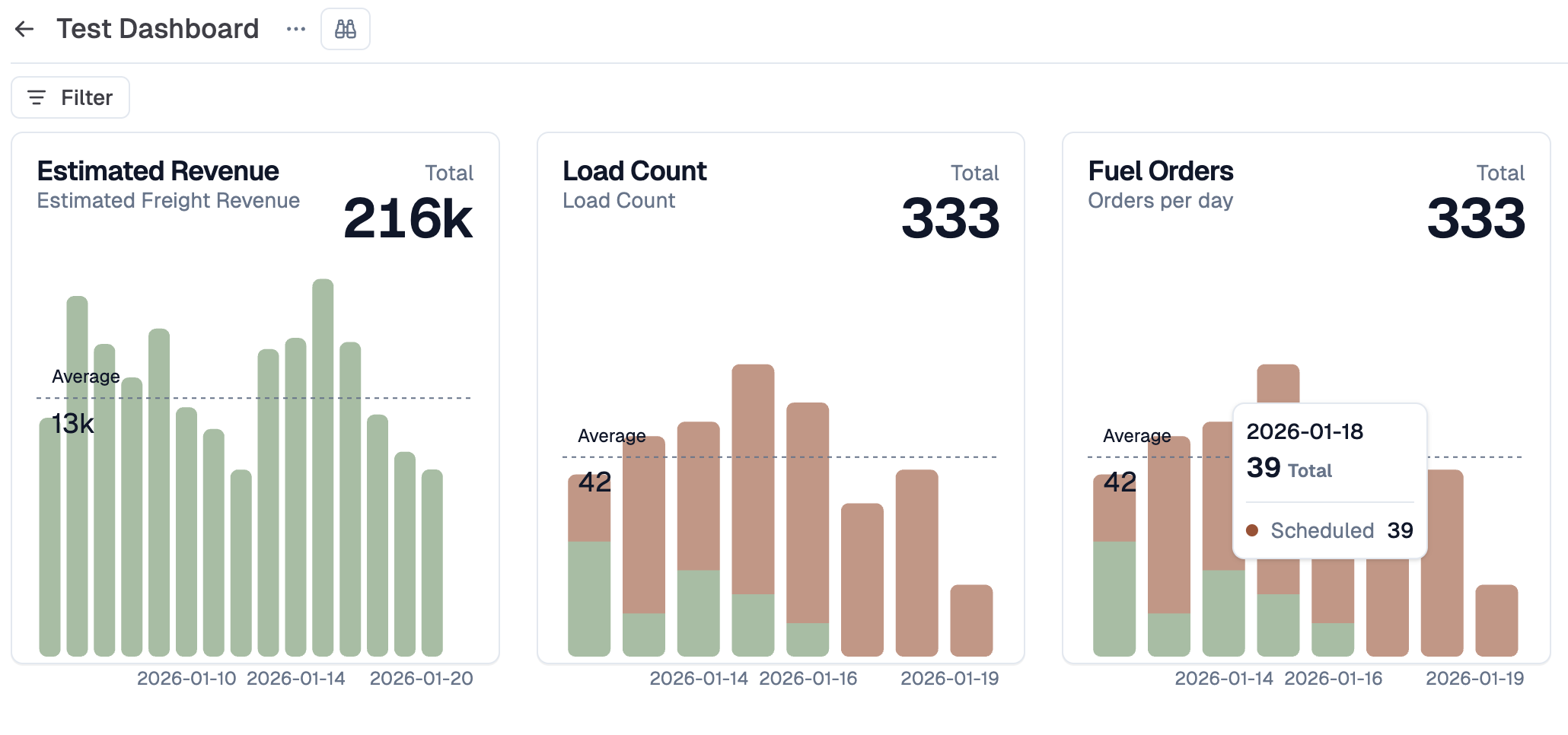
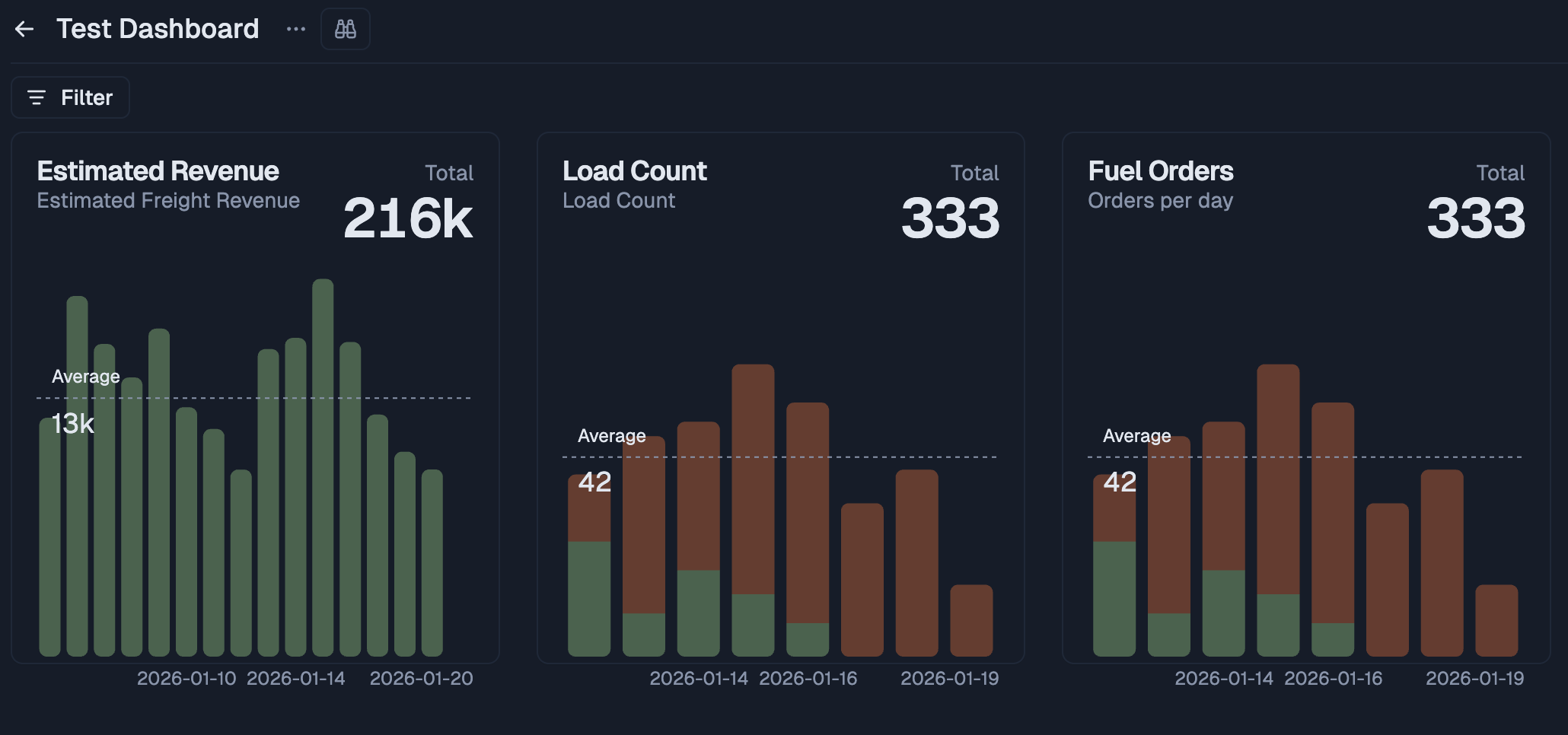
The Analytics module includes:
Analytics is built on four interconnected entities:
Dashboards
Visual layouts that organize multiple blocks into a single view with shared filtering and saved views.
Tables
Data grid views that display raw dataset records with sorting, filtering, column configuration, and drillthrough.
Blocks
Reusable visualization components including bar charts, line charts, pie charts, area charts, funnels, and text fields.
Datasets
SQL-based data sources that retrieve and transform data from your database to power blocks and tables.
Click Analytics in the main navigation sidebar to access the dashboards list.

Dashboards configured with “Show in Analytics Module” appear directly in the Analytics section of the sidebar for quick access.
The main Analytics page displays all dashboards you have access to.

| Column | Description |
|---|---|
| Name | Dashboard name (click to open) |
| Type | Icon indicating Dashboard or Table type |
| Description | Dashboard description |
| Security Groups | Access control groups assigned |
Clicking a dashboard opens the full visualization view.

The header displays:
Click Filter to open the filter panel. Dashboard filters apply to all blocks that have opted in to the selected filter types.

Understanding Filter Levels:
Analytics uses two types of filters that work together:
| Filter Type | Scope | User Controlled | Configuration |
|---|---|---|---|
| Dashboard Filters | All opted-in blocks | Yes | Filter bar at top of dashboard |
| Block Filters | Single block only | No | Configured in block’s Filters tab |
Dashboard Filters:
Dashboard filters appear in the filter bar and affect all blocks that have enabled the corresponding global lookup. Available filter options are determined by:
Common filter types include:
Date Filter Behavior:
Date filters behave differently based on dashboard type:
| Dashboard Type | Date Filter Behavior |
|---|---|
| Table | All date columns are automatically available as filters |
| Chart | Only date fields explicitly selected in block Customize tabs appear |
Block Filters:
Block filters are configured in each block’s Filters tab and are always applied before visualization. Users cannot change block filters from the dashboard. Use block filters to:
Save filter combinations as named views for quick access.

The standard dashboard type displays blocks in a flexible grid layout.

Features:
The table type displays data in a sortable, filterable grid format.

Table Configuration:
Dashboards can contain various block types. See Blocks for detailed configuration.
| Block Type | Value | Description |
|---|---|---|
| Bar Chart | chart-bar | Vertical bar visualization for comparing values across categories |
| Line Chart | chart-line | Trend lines for time-series data and continuous metrics |
| Pie Chart | chart-pie | Proportional segments showing parts of a whole |
| Area Chart | chart-area | Filled line charts for cumulative or stacked values |
| Funnel Chart | chart-funnel | Progressive stages showing conversion or drop-off rates |
| Mini Bar Charts | mini-chart-bar | Compact multi-metric comparison with sparkline-style bars |
| Text Field | text-field | Static or dynamic text content for labels and annotations |
Each block type has specific configuration options in the Data tab. For example:
Click the settings button (gear icon) to open the dashboard editor.

| Field | Required | Description |
|---|---|---|
| Analytics Type | Yes | Dashboard (charts) or Table (data grid) |
| Name | Yes | Display name for the dashboard |
| Description | No | Optional description |
| Security Groups | No | Control which users can access |
| Show in Analytics Module | No | Display in sidebar navigation |
For Table type dashboards, configure the data source:

| Field | Description |
|---|---|
| Dataset | Select the dataset to display |
| Sort By Column | Default sort column |
| Sort Direction | Ascending or descending |
| Available Columns | Drag to reorder, click eye icon to show/hide |
Click on any column’s type badge to open the column configuration popover. Each column can be customized with display type and styling options.
Display Types:
| Display Type | Description | Best For |
|---|---|---|
| Text | Plain text with optional styling | Names, descriptions, IDs |
| Badge | Colored pill/tag display | Status, categories, labels |
| Number | Formatted with thousands separators | Counts, quantities |
| Currency | Formatted as USD currency | Prices, totals, revenue |
| Date | Formatted as localized date | Created dates, due dates |
Text Styling Options:
When Display Type is set to Text, additional styling options appear:
| Option | Values | Description |
|---|---|---|
| Color | Light, Dark | Text color intensity |
| Weight | Light, Heavy | Font weight (normal vs medium) |
| Size | X-Small, Small, Normal, Large | Font size |
Badge Styling Options:
When Display Type is set to Badge, choose:
| Option | Values | Description |
|---|---|---|
| Variant | Default, Outline | Filled background vs outlined border |
For text and date columns, you can enable drillthrough to open a detail sheet when clicked:
When users click the column value, a detail sheet opens showing the full entity record.
Configure which global filters appear on the table dashboard.

With a dashboard open in organize mode:
When editing a block, you have access to five configuration tabs that control different aspects of the visualization.

The General tab configures basic block information:
| Field | Required | Description |
|---|---|---|
| Block Type | Yes | The visualization type (see Block Types) |
| Block Name | Yes | Display name shown in the block header |
| Description | No | Optional description for documentation |
The Data tab configures what data the block displays and how it’s aggregated.

| Field | Required | Description |
|---|---|---|
| Dataset | Yes | The data source for this block |
| X-Axis Field | Yes | The field used for chart categories or grouping |
| Metrics | Yes | One or more numeric fields to visualize |
Metrics Configuration:
Each metric can be configured with:
You can add multiple metrics to create multi-series charts. Click Add Metric to include additional data series.
The Customize tab controls visual appearance and dashboard filter integration.

Global Lookup Selection:
Select which dashboard-level filters should affect this block:
Only selected lookups will respond to dashboard filter changes. Unselected lookups are ignored.
Custom Colors:
Configure custom colors for chart elements:
The Filters tab configures block-level filters that are always applied to the data before visualization.

Unlike dashboard filters (which users can change), block filters are fixed and always apply. Use them to:
Adding a Block Filter:
The Drillthrough tab configures what happens when users click on chart elements.

| Field | Description |
|---|---|
| Field for Drillthrough | Which chart dimension triggers drillthrough |
| Target Drillthrough Table | The entity type to display (e.g., Task, Order) |
| Table Title | Header text for the drillthrough sheet |
Sheet Layout Builder:
Configure which fields appear in the drillthrough detail view:
Drillthrough allows users to click on chart elements to view the underlying data.

When configured on a block:
The dashboard menu (accessible via the three-dot icon next to the dashboard name) provides several actions:

Enter organize mode to rearrange blocks:
Open the dashboard settings panel to modify:
Create a copy of the current dashboard:
Export table data to an Excel file:
If filters are applied, only filtered data is exported. Otherwise, all data is included.
Reload all data from the database:
This is useful when underlying data has changed and you want to see the latest values without refreshing the entire page.
Assign security groups to dashboards to control visibility:
Datasets also have security groups:
| Issue | Solution |
|---|---|
| Blank dashboard | Check that blocks are configured with valid datasets |
| ”No data” message | Verify dataset query returns results |
| Loading spinner | Check for slow dataset queries |
| Missing blocks | Verify user has access to block datasets |
| Issue | Solution |
|---|---|
| Filter has no options | Check that global lookups are configured on blocks |
| Filter not affecting blocks | Verify blocks have matching filter types selected |
| Saved view not applying | Ensure filters in saved view are still valid |
| Issue | Solution |
|---|---|
| Chart shows no bars/lines | Verify X-axis and metrics are configured |
| Wrong data displayed | Check dataset query and block configuration |
| Colors incorrect | Review custom color settings in Customize tab |